Photo workflow for Mac
Ingest. Cull.
Browse. Organize.
Save a workspace for each kind of shoot. Review your photos, add metadata, and import into folders named the way you want.
Free during beta · No account
macOS 15+ · Apple silicon · Version 0.9.5
Hit F to toggle Focus mode.
Example workspaces · Ingest 0.9.5 (41) · RAW photography from Signature Edits & contributing photographers
01 / Workspaces
Your setup, ready
for the next shoot.
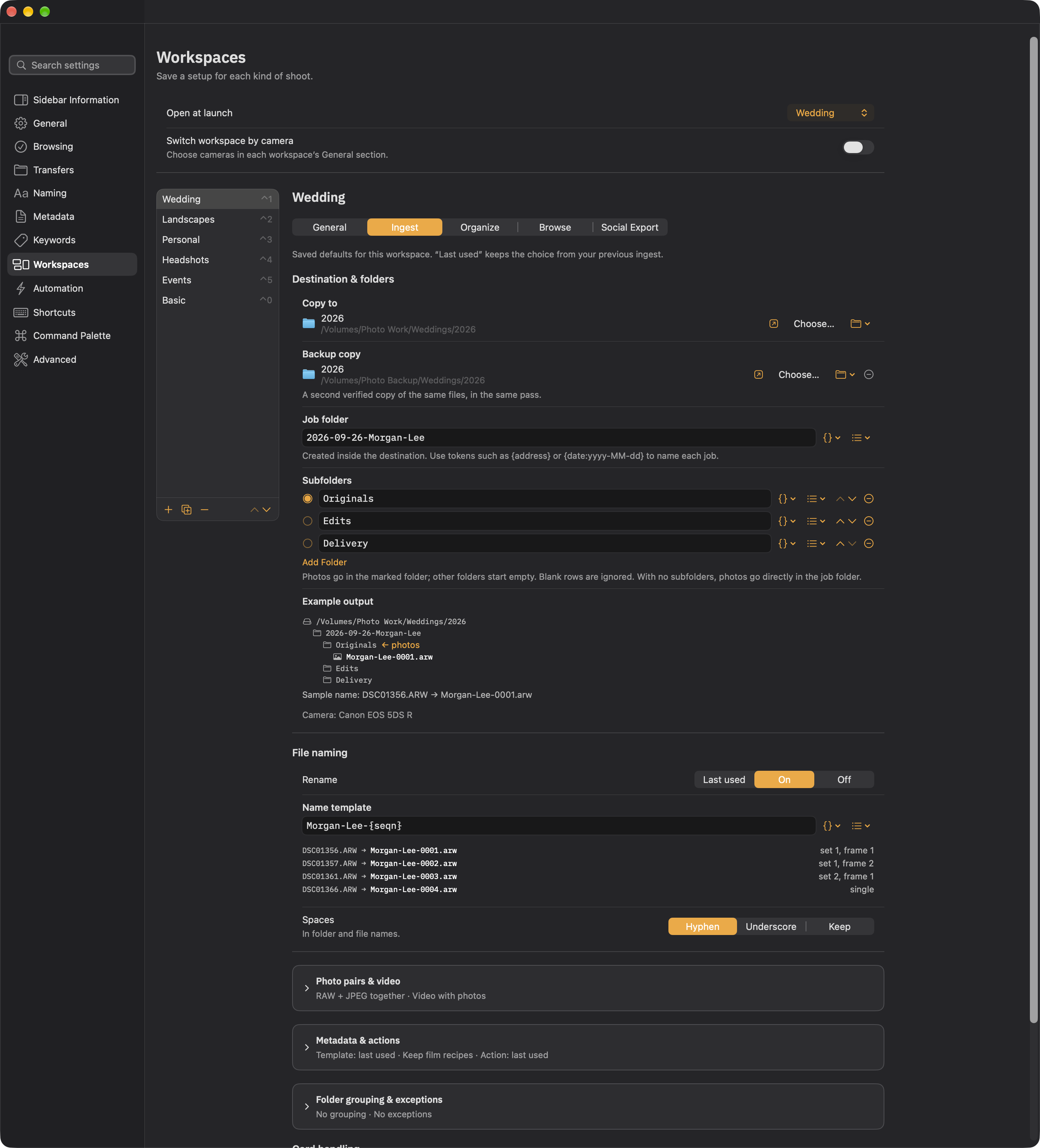
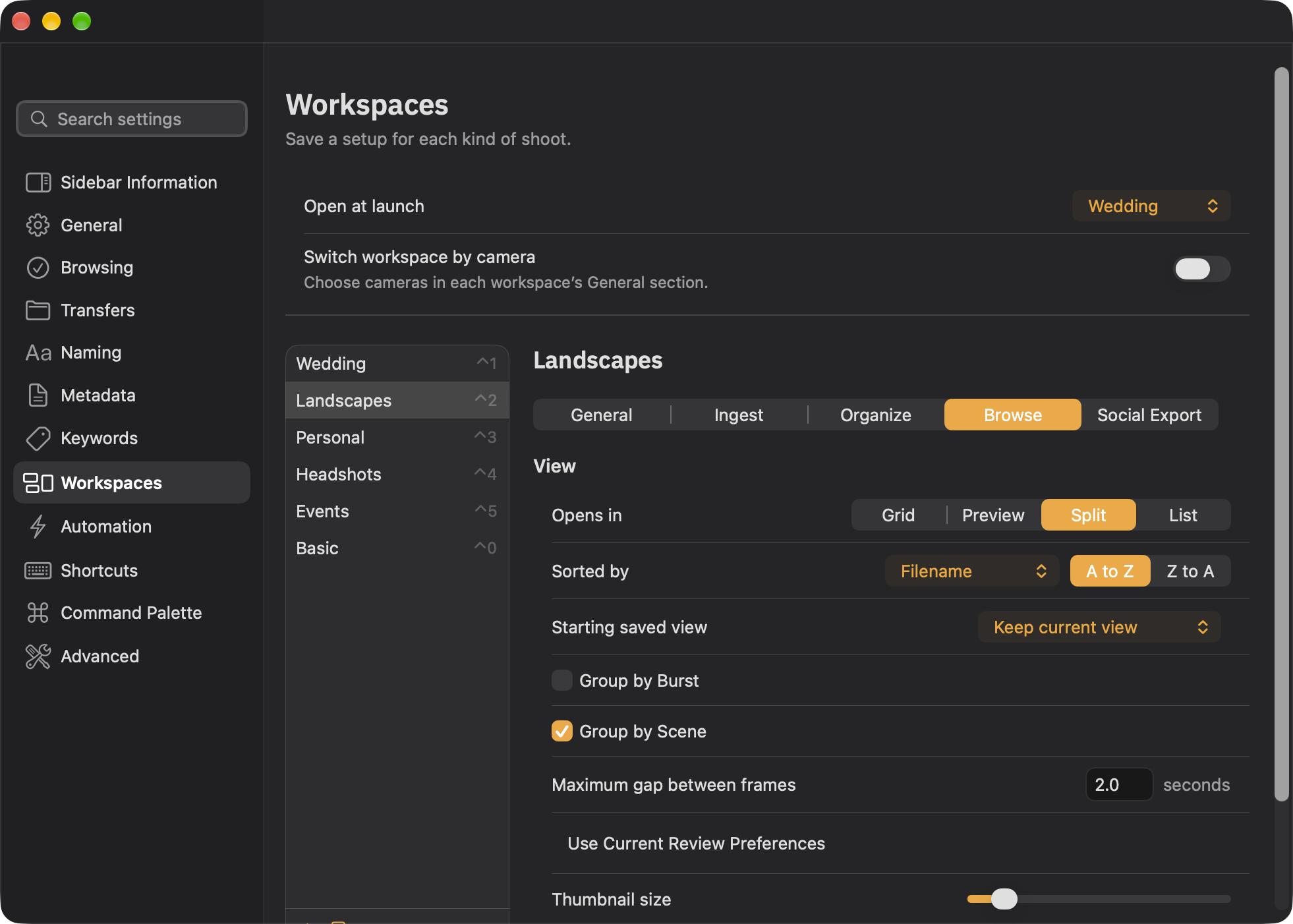
Save destinations, filenames, folder structures, metadata, and browsing preferences together. These five example workspaces show what you can build for your own photography.
Use a separate physical drive for Photo Backup. Backup strategy →
02 / Metadata Assist
Type ;.
See your options.
Pick a field, enter the details, and review each change before Apply. Add keywords, update a caption, or choose a location on the map while your photographs stay in view.
Map Location sets real GPS coordinates. A typed IPTC place name is separate. Pause or open fullscreen to take a closer look.
Review and import
See the detail.
Keep the decisions.
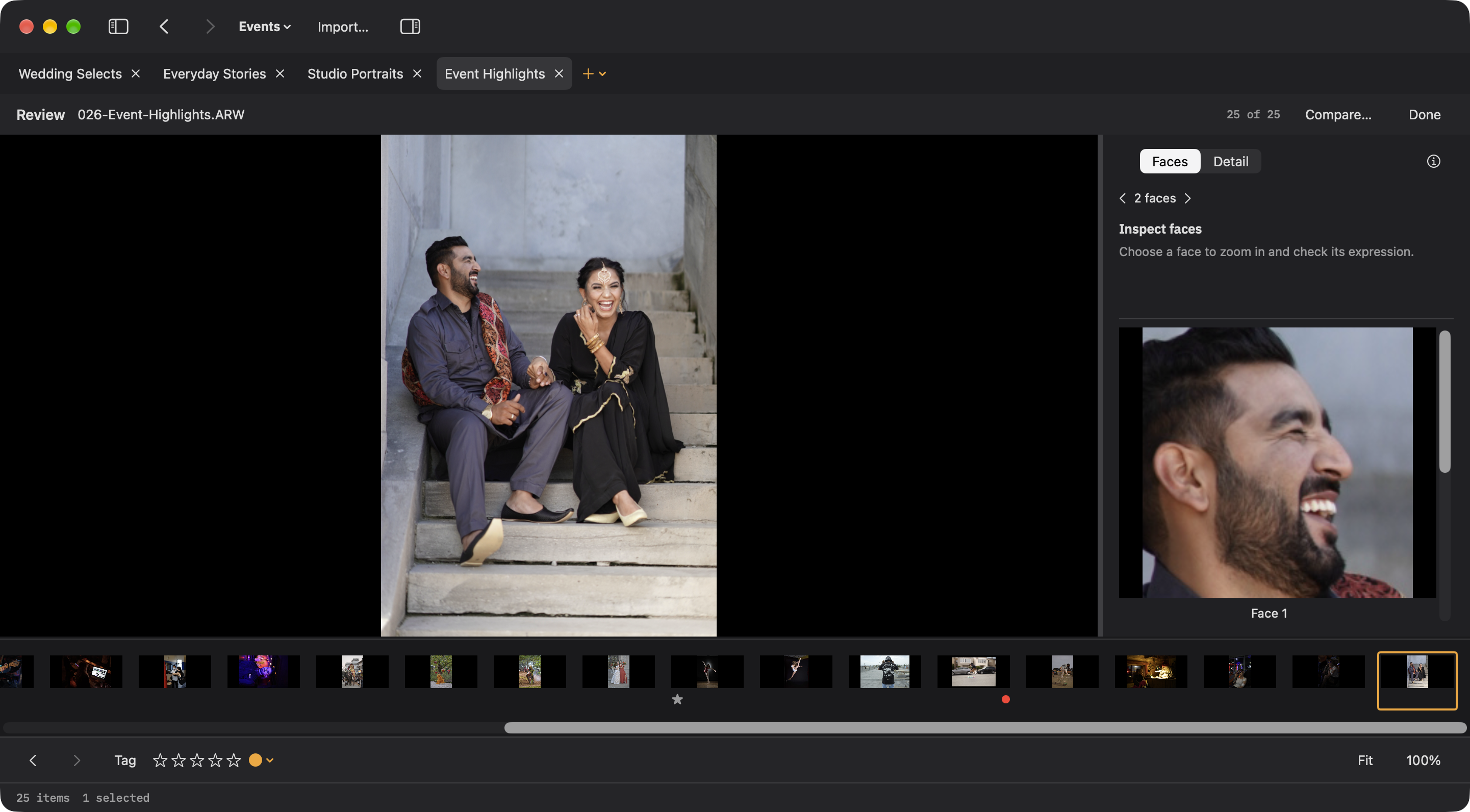
Open Review for a fixed set of photos, with faces or detail beside the full frame. Compare a reference and candidate, then tag, rate, and mark photos reviewed. Your decisions stay with the shoot.
When you’re ready to copy, Import… opens the photo scope, destinations, filenames, and output preview for review. Ingest verifies each copy. Organize opens its own window for grouping, renaming, copying, or moving an existing folder. ⌘K finds the next action.
Get started →Built for this machine
Unapologetically Mac.
I’m a photographer and an Apple enthusiast. I built Ingest for the Mac, with native controls, the keyboard, and ⌘K at its center. From family cards to client shoots, it’s the photo workflow app I wanted on my own Mac.
Brian Renshaw Photographer & developer

Off the card. Into your folders.
Start with a folder. Make the workspace yours.
Free during beta · No account
macOS 15+ · Apple silicon · Version 0.9.5
Ingest is a working beta. I use it for my own work and am still developing it for a broader audience. Send feedback →
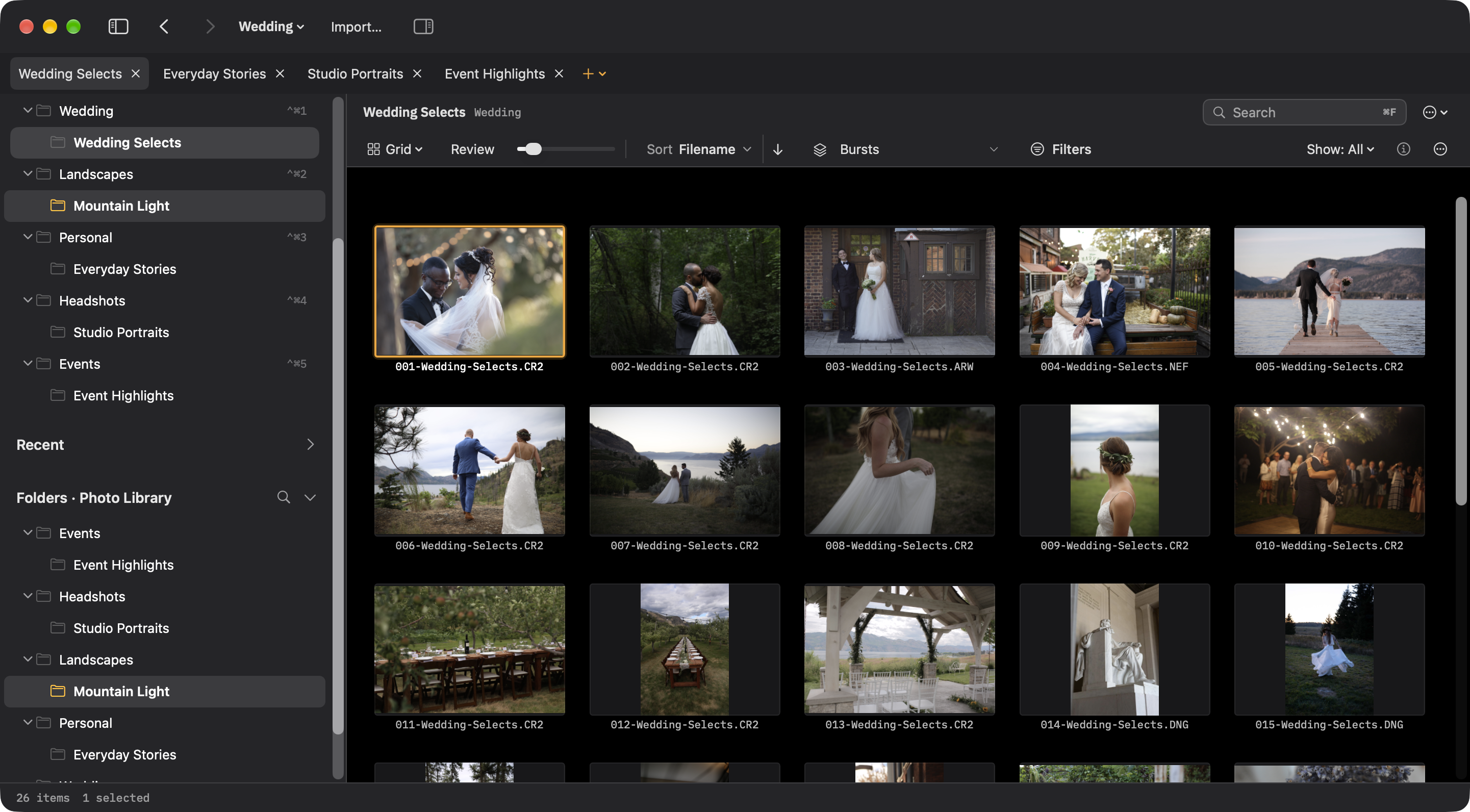
One job, from ceremony to delivery.
Keep the couple’s originals together, with empty folders ready for edited files and final exports.
What changes with this workspace
- Review
- Grid · RAW + JPEG paired
- File naming
Morgan-Lee-{seqn}Example:Morgan-Lee-0001.arw
Chronological review
Grid, oldest capture first, burst grouping, and combined RAW + JPEG pairs. Follow the day in order and keep rapid sequences together.
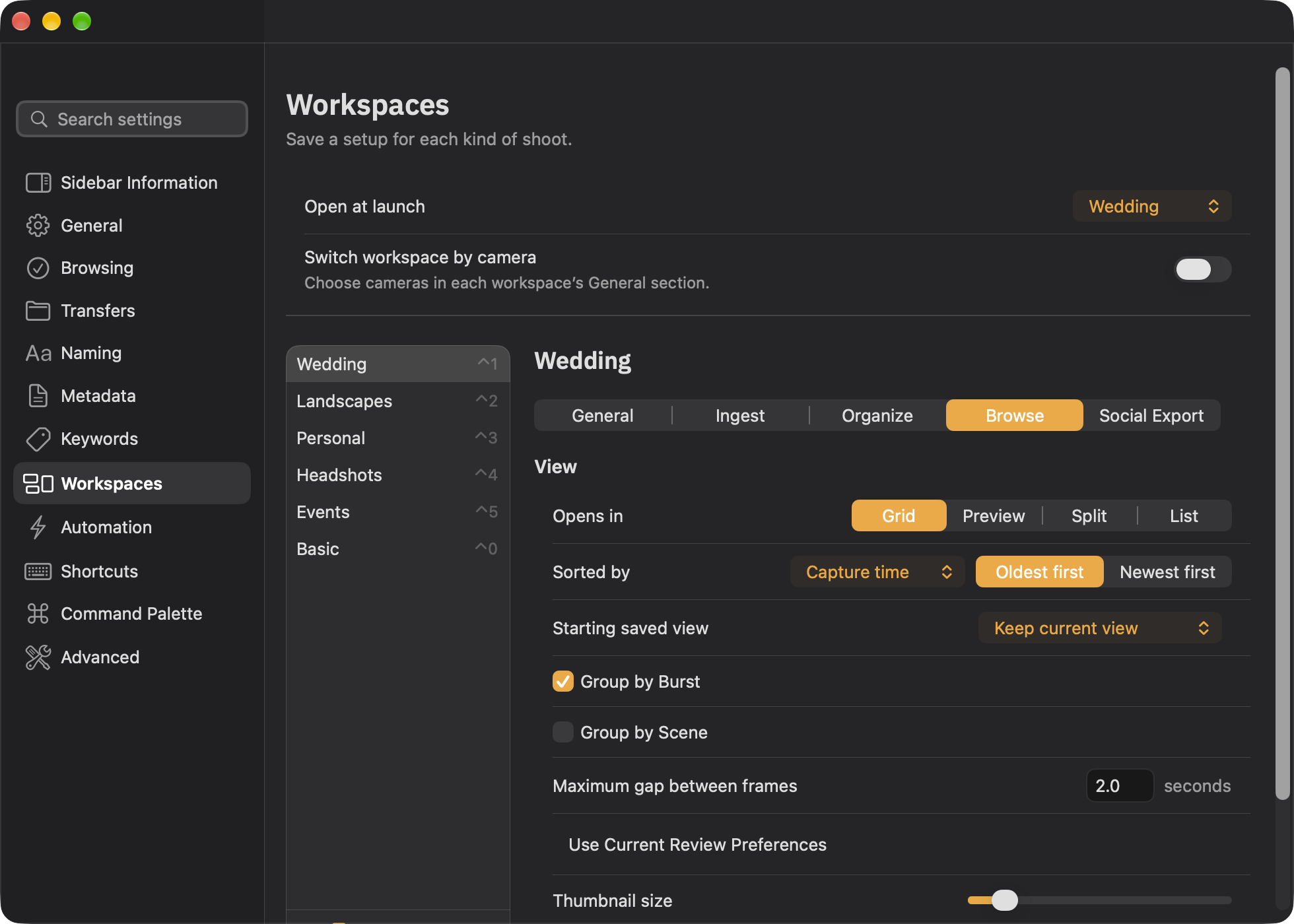
Folders, naming, and verified backup example
Working storage · Photo Work
Weddings/2026/
└── 2026-09-26-Morgan-Lee/
    ├── Originals  ← receives photos
    ├── Edits  · empty
    └── Delivery  · empty
Second verified copy · Photo Backup
Photo Backup/Weddings/2026/2026-09-26-Morgan-Lee/Originals/
Originals receives the photos. The other folders start empty for work you create or copy later.
Fictional client names and dates. Adapt this example to your own workflow.
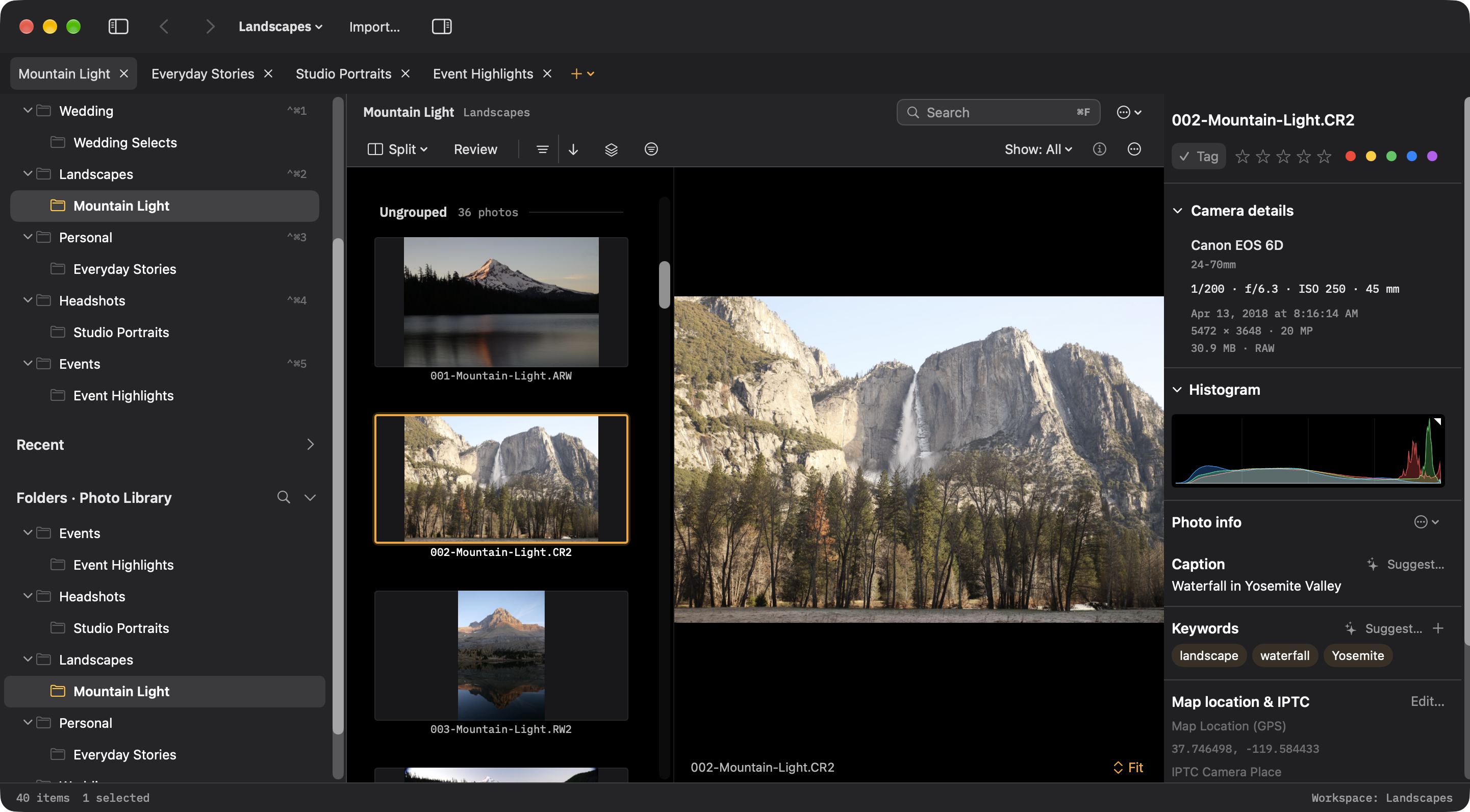
File by place. Keep the camera’s names.
Organize each trip beneath its location, with space for edits and print-ready exports.
What changes with this workspace
- Review
- Split · histogram and camera details
- File naming
- Preserve camera filenamesExample:
DSC01356.ARW
Scene-based review
Split view with scene grouping instead of burst grouping. Keep camera filenames and inspect the histogram and camera details alongside the photograph.
Folders, naming, and verified backup example
Working storage · Photo Work
Landscapes/Yosemite/
└── 2026-09-26-Valley/
    ├── Originals  ← receives photos
    ├── Edits  · empty
    └── Prints  · empty
Second verified copy · Photo Backup
Photo Backup/Landscapes/Yosemite/2026-09-26-Valley/Originals/
Originals receives the photos. The other folders start empty for work you create or copy later.
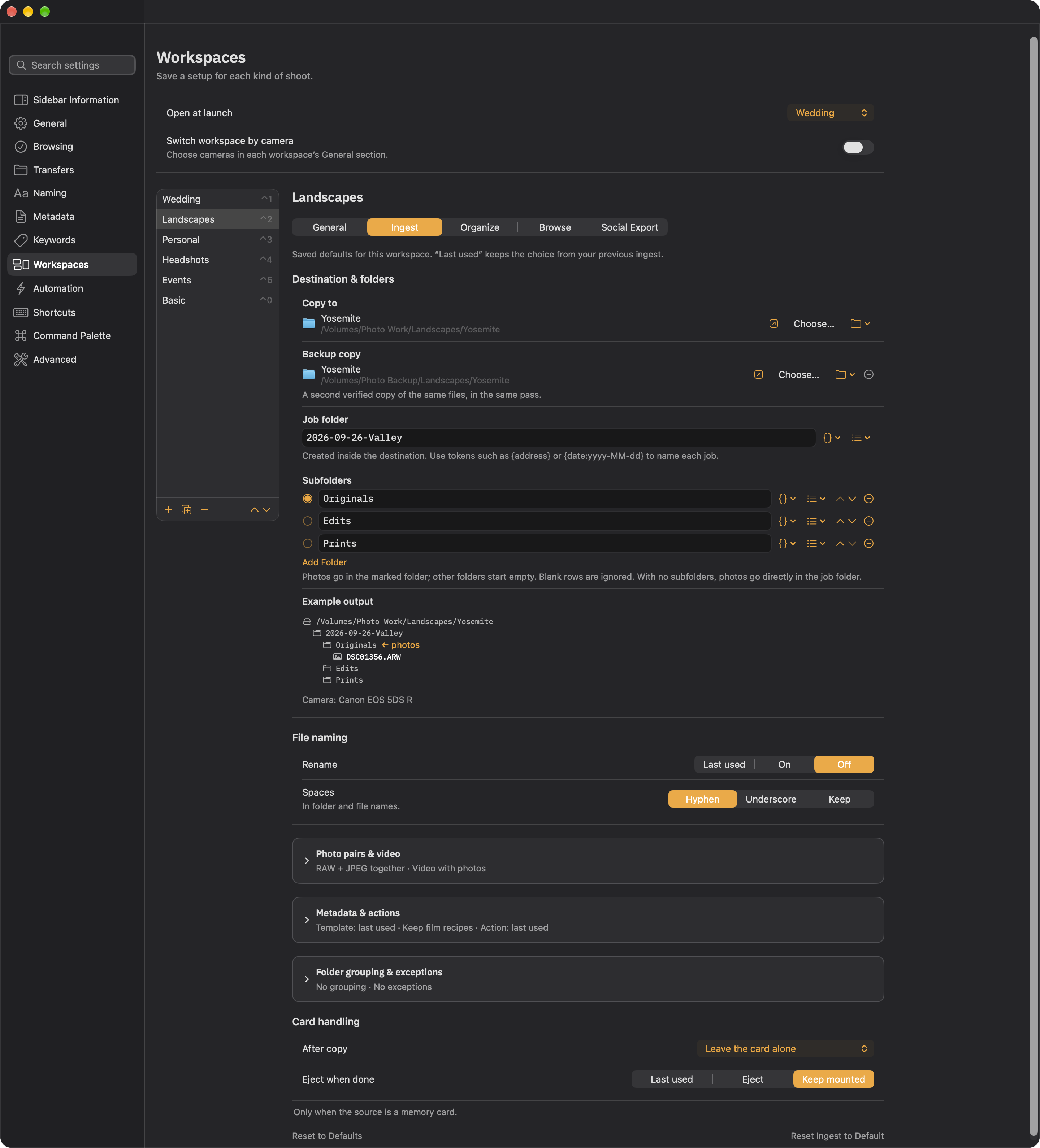
Fictional client names and dates. Adapt this example to your own workflow.
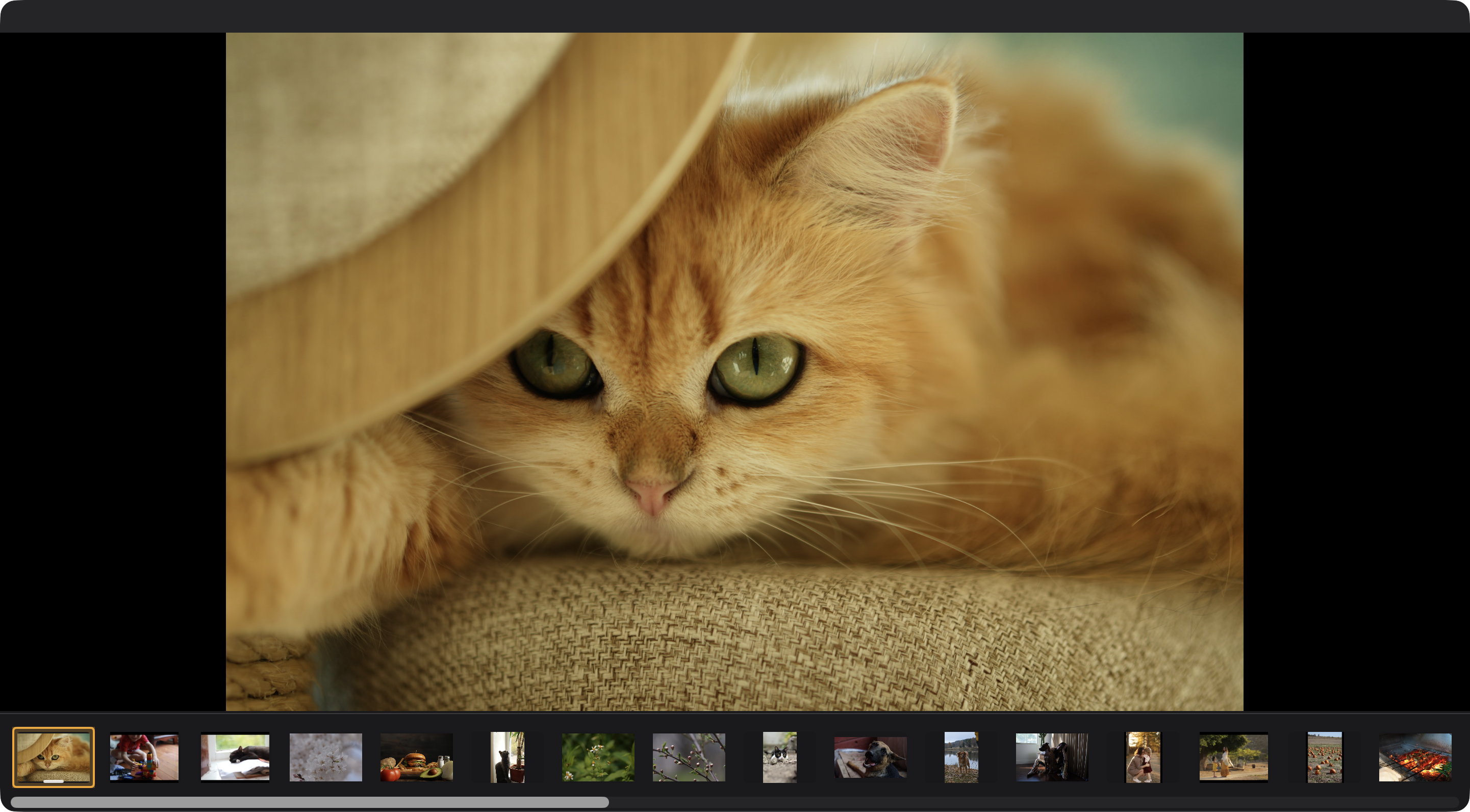
A simple home for everyday photographs.
Keep each day together and leave a Favorites folder ready for copies you choose to make.
What changes with this workspace
- Review
- Preview · optional Focus mode
- File naming
- Preserve camera filenamesExample:
DSC01356.ARW
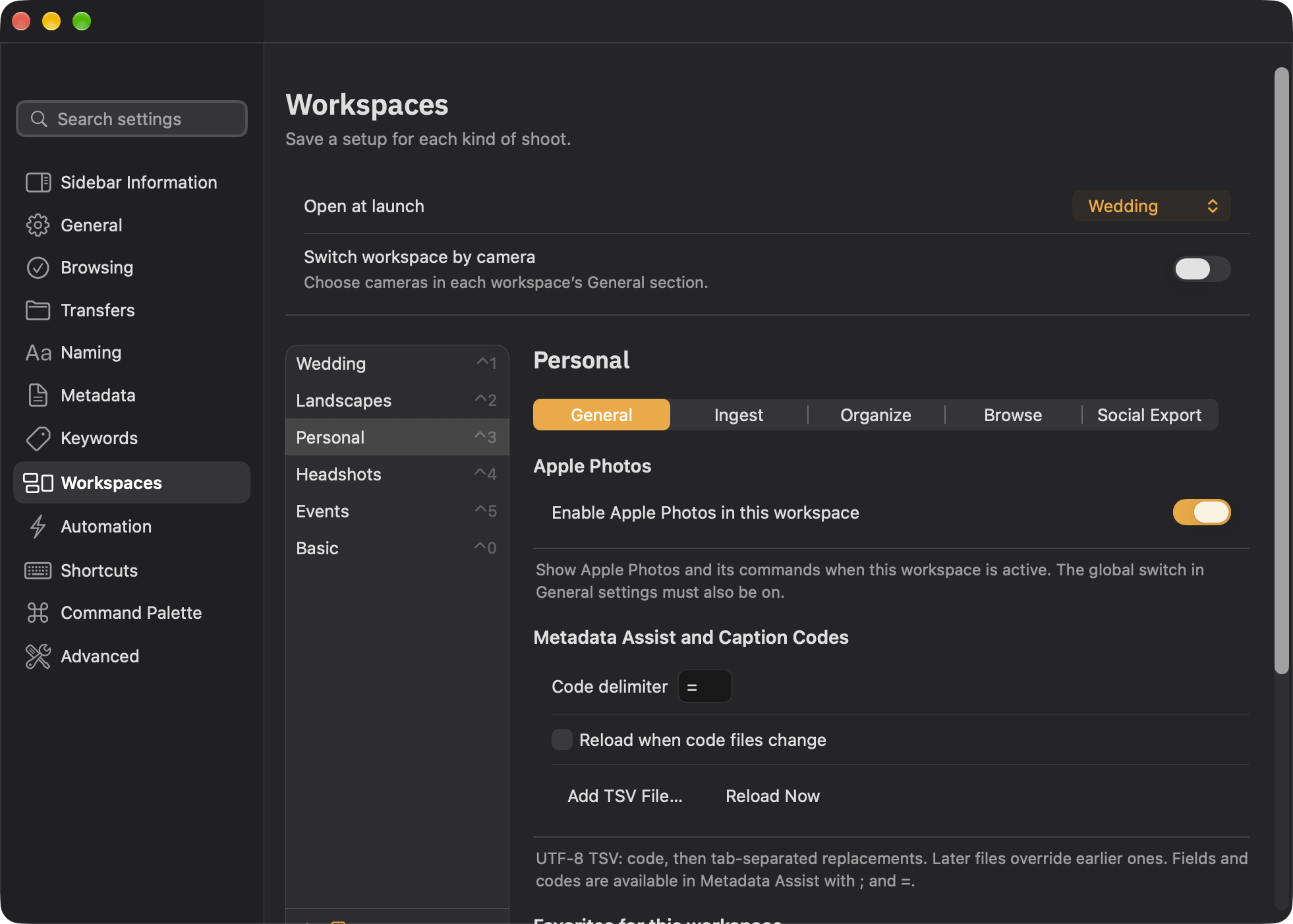
A simpler workspace
Enable Apple Photos for this workspace and keep its favorite folders close at hand. Browse in Preview; press F for Focus mode. The global Apple Photos switch must also be enabled.
Folders, naming, and verified backup example
Working storage · Photo Work
Personal/2026/
└── 2026-09-26-Sunday-at-Home/
    ├── Originals  ← receives photos
    └── Favorites  · empty
Second verified copy · Photo Backup
Photo Backup/Personal/2026/2026-09-26-Sunday-at-Home/Originals/
Originals receives the photos. The other folders start empty for work you create or copy later.
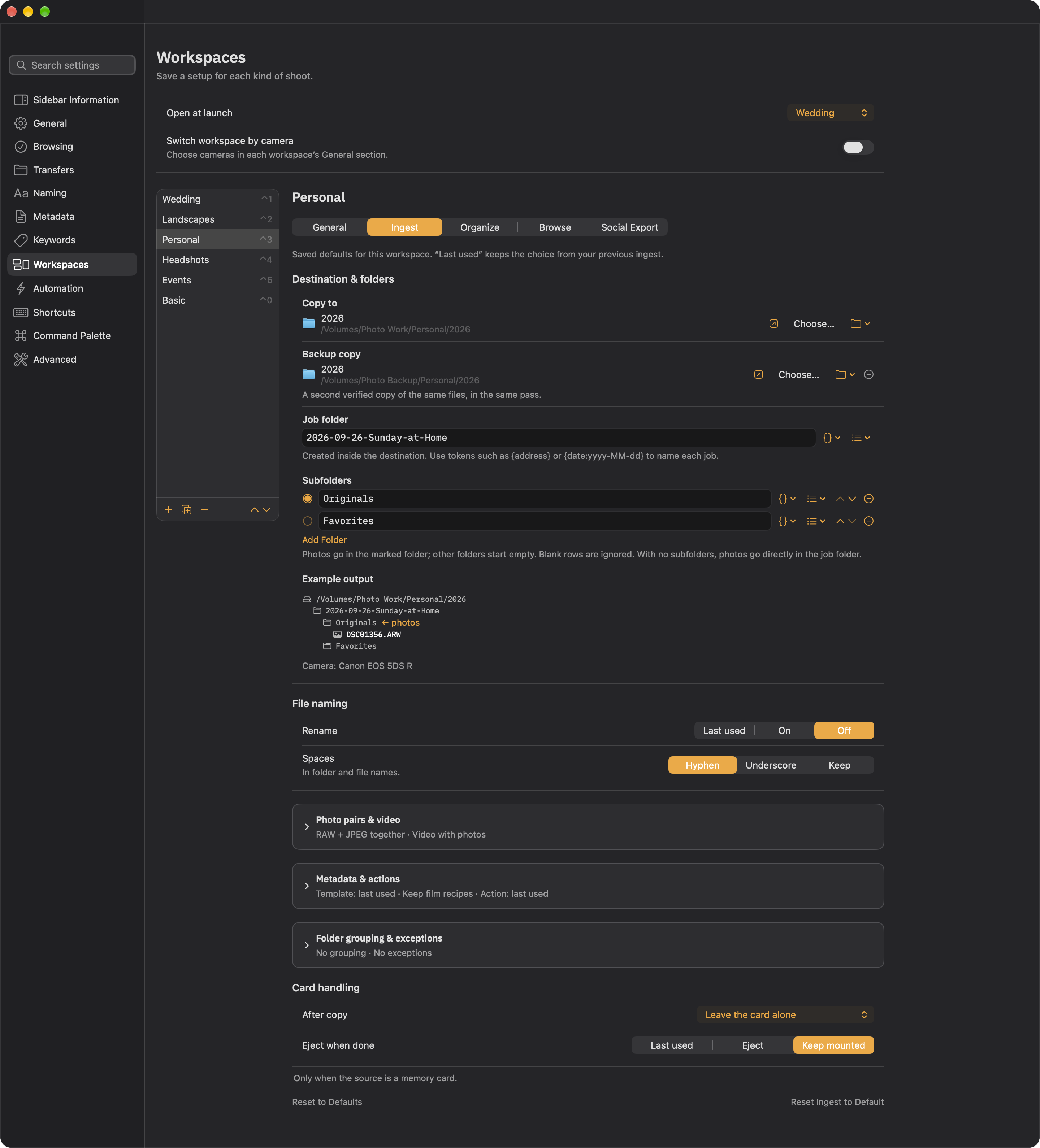
Fictional client names and dates. Adapt this example to your own workflow.
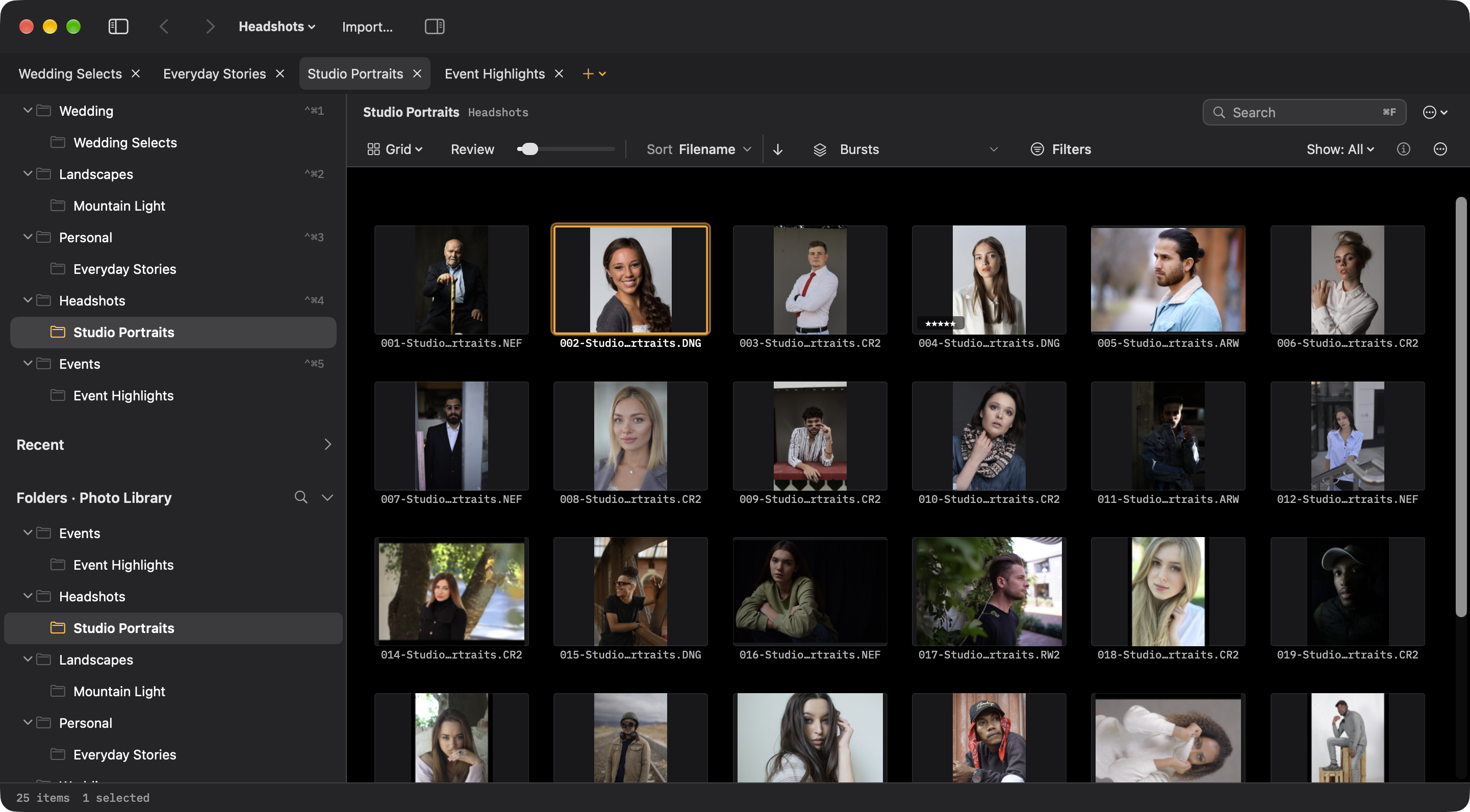
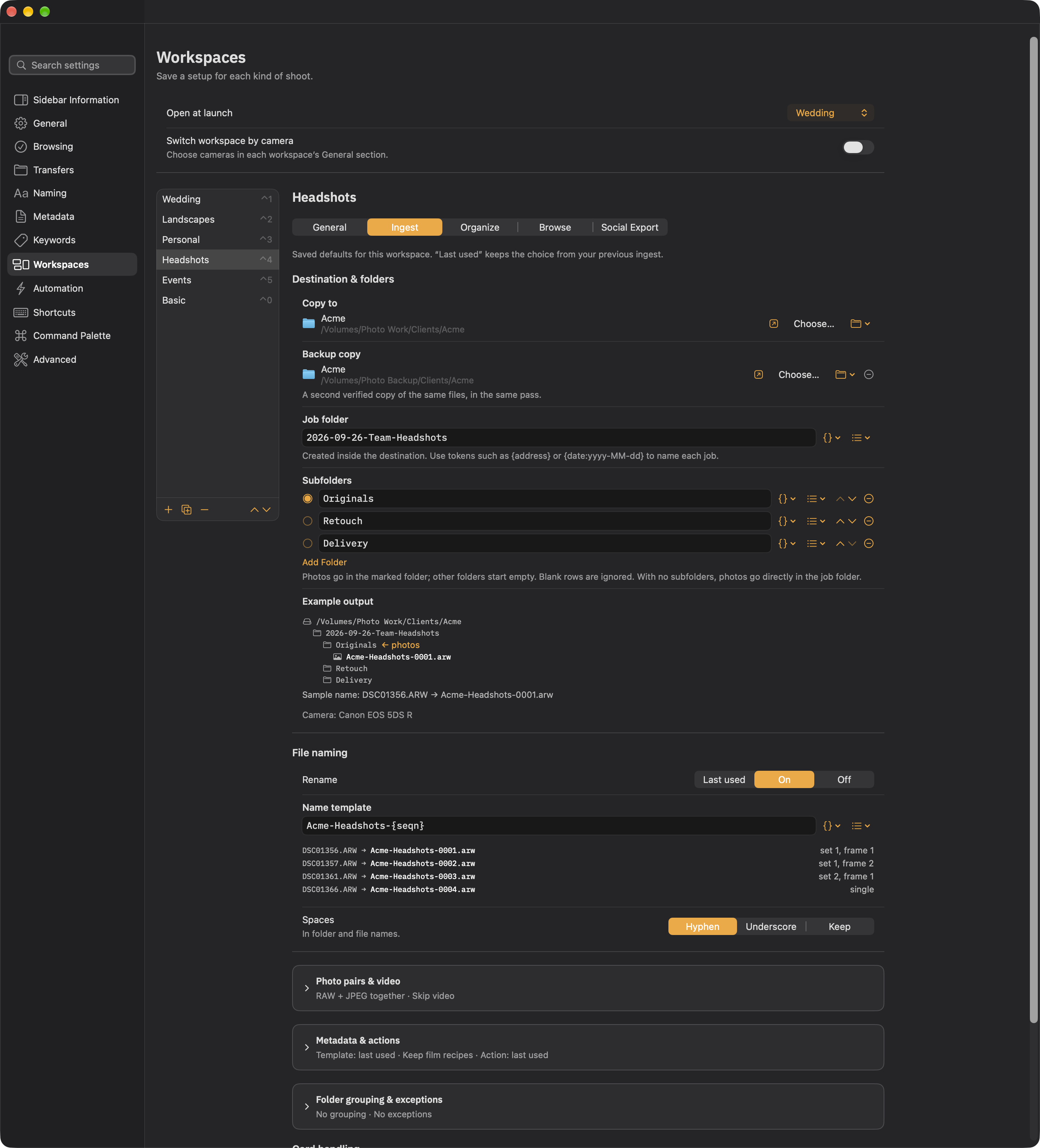
Keep the team together under one client.
Use the client and job in each filename. Retouch and Delivery start empty, ready for work from your editor.
What changes with this workspace
- Review
- Portrait Grid · review each person
- File naming
Acme-Headshots-{seqn}Example:Acme-Headshots-0001.arw
Photo-only import
Skip video while keeping RAW + JPEG pairs together. Use client-based filenames and a portrait Grid to review each person’s photographs.
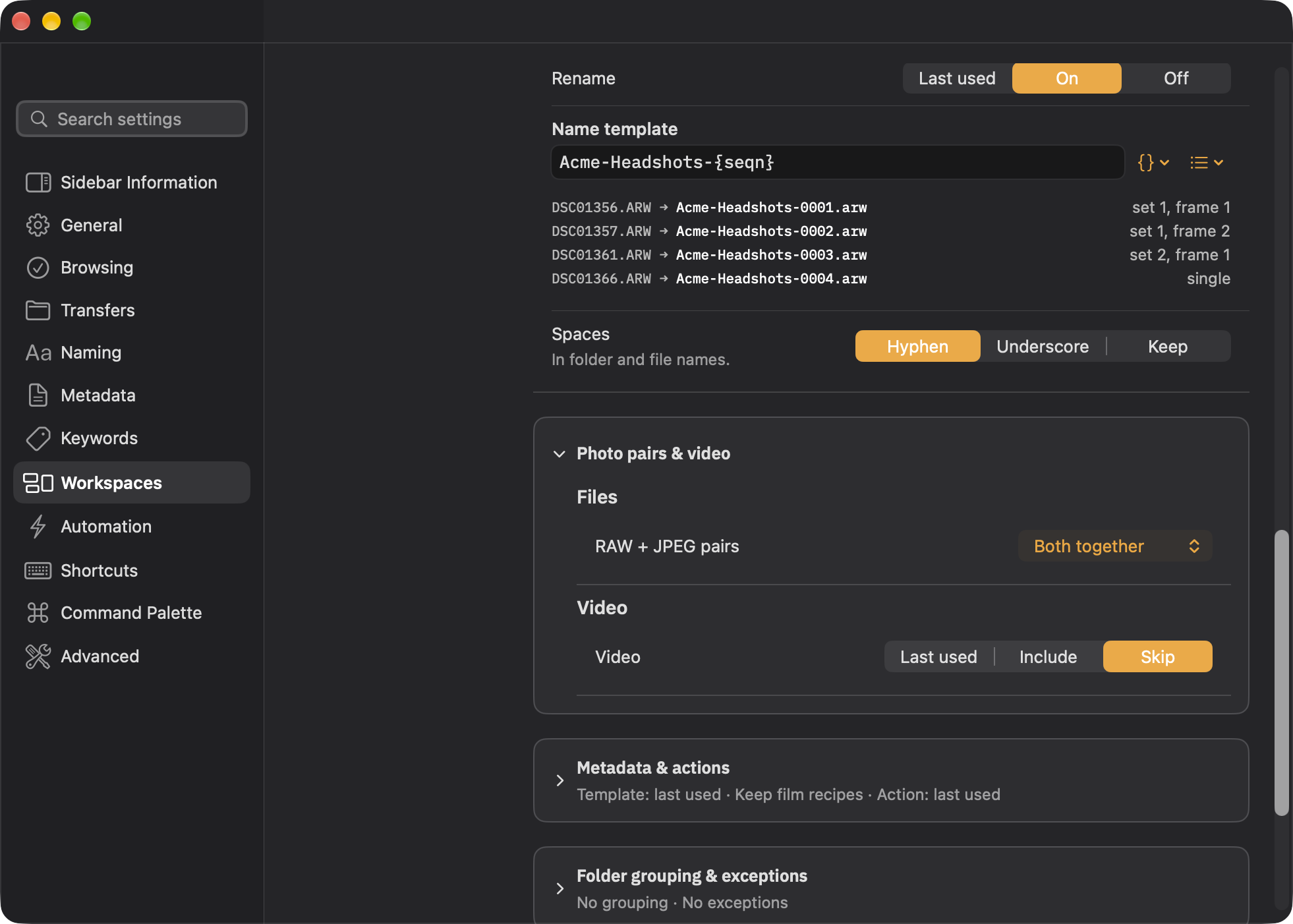
Folders, naming, and verified backup example
Working storage · Photo Work
Clients/Acme/
└── 2026-09-26-Team-Headshots/
    ├── Originals  ← receives photos
    ├── Retouch  · empty
    └── Delivery  · empty
Second verified copy · Photo Backup
Photo Backup/Clients/Acme/2026-09-26-Team-Headshots/Originals/
Originals receives the photos. The other folders start empty for work you create or copy later.
Fictional client names and dates. Adapt this example to your own workflow.
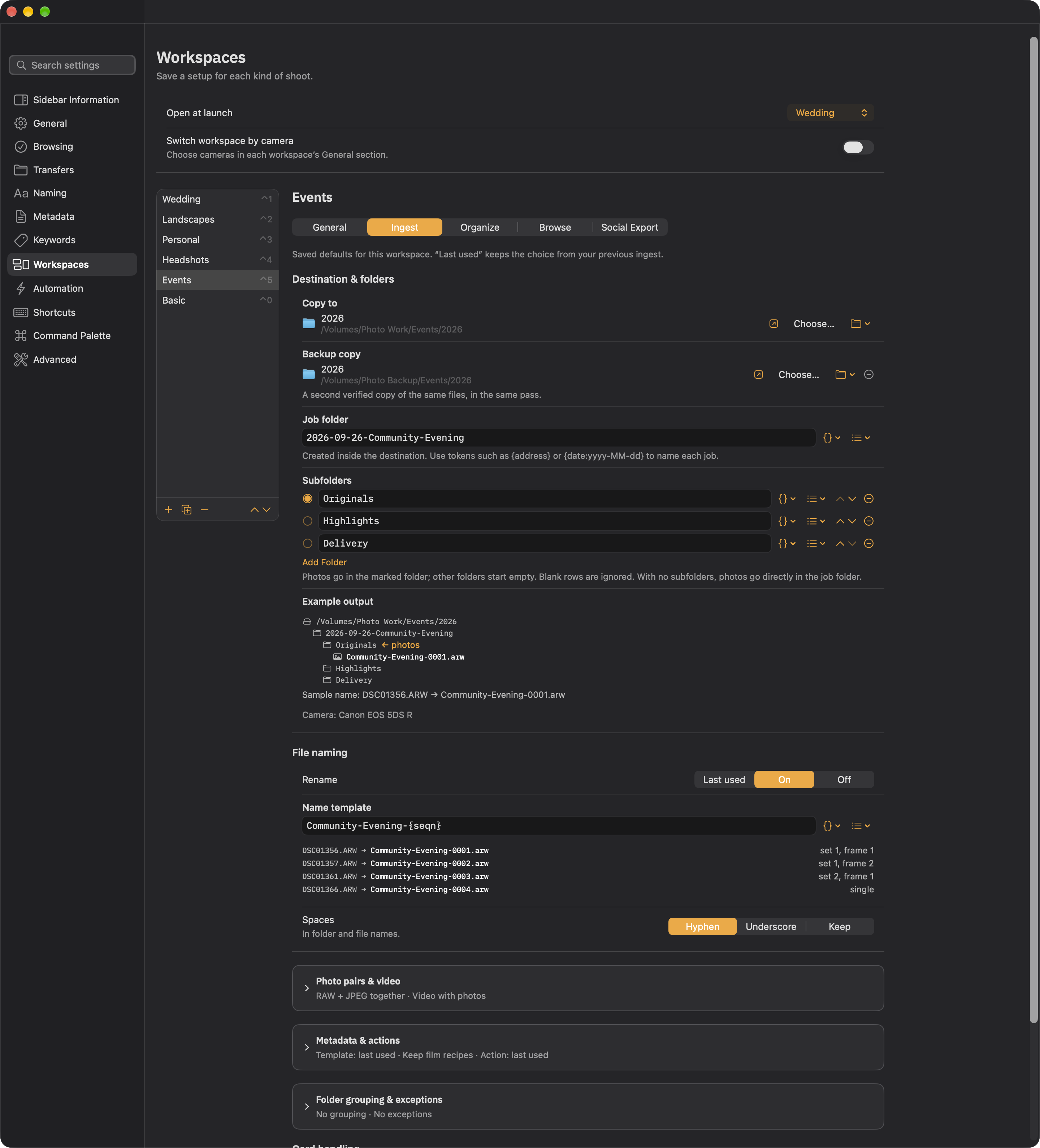
One evening, a clear path to highlights.
Keep the complete event in Originals, with empty folders for your chosen highlights and delivery exports.
What changes with this workspace
- Review
- Preview · face review
- File naming
Community-Evening-{seqn}Example:Community-Evening-0001.arw
A vocabulary for the job
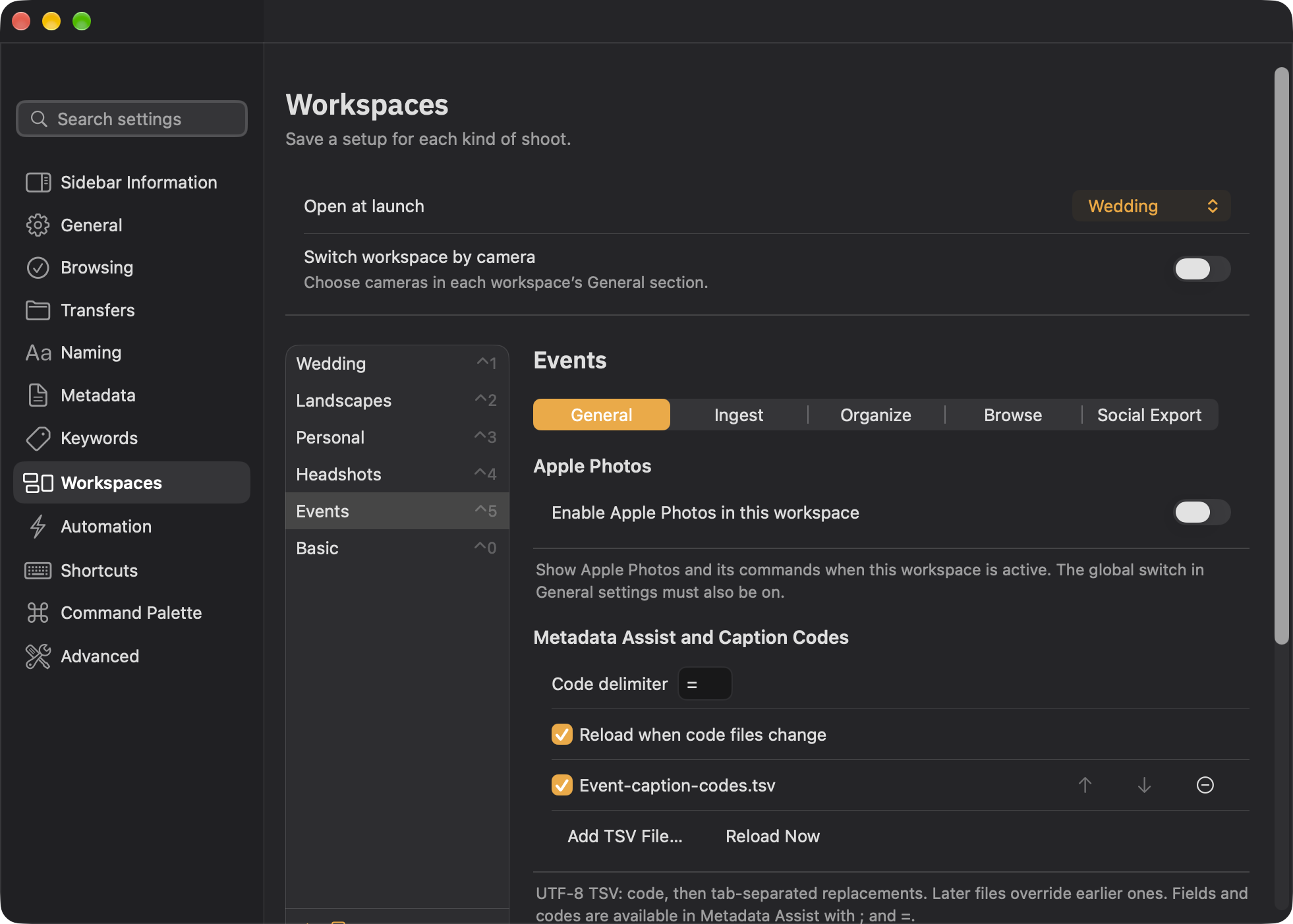
Load an event-specific TSV caption-code file and reload it when it changes. Keep event names and venue details ready in Metadata Assist, with Preview and face review for expressions.
Folders, naming, and verified backup example
Working storage · Photo Work
Events/2026/
└── 2026-09-26-Community-Evening/
    ├── Originals  ← receives photos
    ├── Highlights  · empty
    └── Delivery  · empty
Second verified copy · Photo Backup
Photo Backup/Events/2026/2026-09-26-Community-Evening/Originals/
Originals receives the photos. The other folders start empty for work you create or copy later.
Fictional client names and dates. Adapt this example to your own workflow.
Map Location (GPS) searches for a place and previews its pin before Apply. It saves coordinates as well as IPTC place details. GPS coordinates are what photo apps such as Apple Photos and Lightroom use for a map location.
For proprietary RAW files, Ingest writes metadata to an XMP sidecar. Have your editor read the updated metadata. For Apple Photos, export a JPEG with metadata and GPS included; do not assume Photos reads a RAW sidecar. This is file metadata, not automatic cloud synchronization.
Optional IPTC fields, import templates, and TSV caption codes live in Metadata Assist when a job needs them. Use Edit Individual Fields for creator, copyright, and other IPTC details; import a local .ingesttemplate for reusable fills; type = for caption codes from a workspace TSV file.
Choose Edit Individual Fields for optional IPTC details beyond Caption and Keywords, including creator, copyright, credit, and location fields. Use only the fields your workflow needs. Return the draft to Metadata Assist, review the proposed changes, and Apply.
Build reusable metadata templates with the fields you need. Import or export a local .ingesttemplate file in the metadata template editor, then choose a template in your workspace’s Metadata & actions settings.
Templates can replace values, fill empty fields, or add to supported lists. Review your template before using it on a job. Importing a template does not upload your photographs.
Add a UTF-8 TSV caption-code file to a workspace. Each row begins with a short code followed by tab-separated replacement text. Type = in Metadata Assist to find your codes; ; finds fields.
Enable Reload when code files change to pick up edits to those local TSV files. Keep a different vocabulary for each shoot, such as event names and venues. TSV files supply caption shortcuts; XMP sidecars store photograph metadata.
Press ⌘’ to open Metadata Assist. Type ; to see fields including Location, Caption, and Keywords. A fragment like ;lo narrows the list. Choose a field, then fill the value or search for a place. Separate keywords with commas.
; finds metadata fields. Curly-brace tokens such as {client} are for rename and folder templates, not for Metadata Assist.
Tab fills the highlighted field, code, or a value you have used before. Successfully applied or staged values stay in local history for recent-value menus, Tab completion, and Use Last Details. That history stays on this Mac.
In the demonstration: add Keywords landscape, waterfall, Yosemite, and set Caption to Waterfall in Yosemite Valley.
Typing alone writes nothing. Changes appear in a review panel first. Check the proposed values against what is already on the photograph, then Apply. Cancel discards the draft.
Edit Individual Fields opens a detailed draft editor inside Metadata Assist; Use Changes returns that draft for review. Only Apply writes the reviewed changes.
Choose Camera & Lens… in Metadata Assist for film scans and other files that need equipment details. Pick saved gear from My Gear, search the offline catalog, or save a custom make and model.
Enter known aperture, shutter speed, ISO, and focal length; leave unknowns blank. Fill missing values preserves recorded metadata; Replace recorded values is for scanner metadata. Review Details returns to Metadata Assist before Apply. My Gear is local to this Mac.
Send selected photos to Social Export to prepare frames, borders, backgrounds, and text for a post. Its independent window saves your project and reviews output sizes and filenames before Export.
Optional on-device checks can flag soft focus, closed eyes, and near-duplicates. Analysis stays on your Mac. Suggestions stay suggestions; every keep is yours.
Use a loupe or 100% preview to inspect detail, compare a reference with candidates, and keep bursts together. Histograms, reversible crops, stars, and labels support your review. Find the controls through ⌘K.
Social Export and optional help
Short extras, when you want them: